
Video Caption Quality for Deaf Viewers: Accuracy, Timing, and Readabil

Table of Contents
- Why Caption Quality Matters for Deaf Viewers
- Accuracy Checklist: What to Look For
- Timing Checklist: Sync and Duration
- Readability Checklist: Font, Contrast, and Background
- When Auto Captions Fail: Planning Your Backup
- Where Hearview Fits in Your Accessibility Toolkit
- FAQ
- Conclusion
Why Caption Quality Matters for Deaf Viewers
For deaf and hard-of-hearing viewers, captions are not a luxury—they are the primary way to access video content. Yet not all captions are created equal. Poor caption quality can lead to confusion, missed information, and frustration. Whether you're watching a lecture, a movie, or a live stream, the accuracy, timing, and readability of captions directly affect your experience.
Recent research has shown that even automatic captions—once considered unreliable—are improving thanks to large language models (LLMs) that can correct errors in real time. However, these tools are not yet perfect. This article provides a practical checklist to help you evaluate caption quality and plan for situations where captions fall short.
Accuracy Checklist: What to Look For
Accuracy is the most critical factor. Even a single misheard word can change the meaning of a sentence. Use this checklist to assess caption accuracy:
- Homophone errors: Does the caption confuse words like "their" vs. "there" or "sea" vs. "see"? LLM-enhanced captions reduce these errors but may still miss context.
- Proper nouns: Are names, places, and brand names spelled correctly? Auto captions often stumble on uncommon terms.
- Technical terms: For specialized content (e.g., medical, legal), check if jargon is accurately transcribed.
- Speaker identification: In multi-speaker videos, are speakers labeled correctly? This is especially important for interviews or panel discussions.
- Non-speech sounds: Are sound effects, music, or laughter indicated? For example, [applause] or [door creaks] provide essential context.
If you notice frequent errors, consider using a secondary tool like an LLM-based caption corrector or a personal caption display that can pull from a more reliable source.
Timing Checklist: Sync and Duration
Even accurate captions are useless if they appear too early, too late, or vanish too quickly. Timing affects comprehension and reading comfort. Here’s what to check:
- Sync with audio: Do the captions appear at the exact moment the words are spoken? A delay of more than a few seconds can cause confusion.
- Duration on screen: Is each caption displayed long enough to be read comfortably? A good rule of thumb is at least 1.5 seconds for short captions and longer for complex ones.
- Pacing: Are captions broken into logical chunks? Avoid captions that are too long (more than two lines) or too short (single words).
- Overlap: Do captions from different speakers overlap cleanly, or do they clash? Proper timing ensures each caption is distinct.
If timing is off, you may need to adjust your video player settings or use a caption service that allows you to delay or speed up captions. Some personal caption glasses offer adjustable sync to compensate for streaming delays.
Readability Checklist: Font, Contrast, and Background
Readability is about how easily you can see and process the captions. Poor readability can cause eye strain and slow down comprehension. Evaluate these factors:
- Font size: Is the text large enough to read from your viewing distance? Captions should be at least 5.5% of the screen height.
- Font style: Sans-serif fonts (like Arial or Helvetica) are easier to read on screen than serif fonts.
- Contrast: Is there high contrast between text and background? White text on a black background is standard, but some platforms allow customization.
- Background opacity: A semi-transparent background behind the text improves readability over changing video scenes.
- Position: Are captions placed where they don't block important visual content? Most players allow you to move captions to the top or bottom.
If the platform's captions are hard to read, consider using external caption glasses that overlay text directly in your field of view, bypassing the platform's rendering.
When Auto Captions Fail: Planning Your Backup
Despite improvements, automatic captions can still fail in noisy environments, with heavy accents, or during fast dialogue. Planning ahead ensures you don't miss critical content. Here are some backup strategies:
- Use LLM-enhanced caption tools: Some services now use LLMs to correct auto captions in real time. These can reduce errors by up to 50%.
- Download transcripts: For pre-recorded videos, check if a transcript is available. Transcripts are often more accurate than live captions.
- Enable multiple caption sources: Some video players allow you to switch between auto captions and human-generated captions if available.
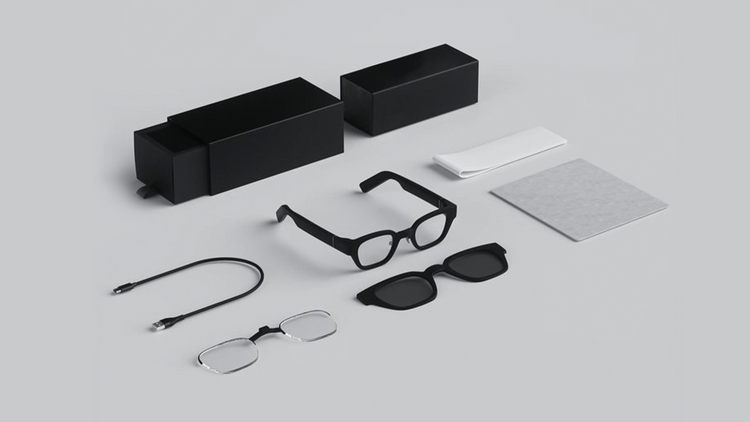
- Personal caption glasses: Devices like Hearview glasses can receive captions from a smartphone app, giving you control over the source and display.
Remember, no single solution is perfect. Combining tools gives you the best chance of a smooth viewing experience.
Where Hearview Fits in Your Accessibility Toolkit
Hearview subtitle glasses are designed to provide a personal caption display that works with various video sources. They are not a replacement for accurate captions, but they offer flexibility when platform captions are poor. For example, you can use the Hearview app to pull captions from a streaming service or a live event, and the glasses will display them in your field of view. This allows you to adjust font size, contrast, and position to suit your needs.
It's important to note that Hearview glasses rely on the caption source you provide. If the source has errors, the glasses will display those errors. However, by combining the glasses with an LLM-enhanced caption correction tool, you can improve accuracy. Always verify critical information through professional captioning services when needed.
For medical or legal content, consult a professional captioning provider to ensure compliance with accessibility standards. Hearview is a tool to enhance your viewing experience, not a medical device.
FAQ
1. How can I test if my video captions are accurate enough?
Use the accuracy checklist above. Watch a short segment and note any errors in homophones, proper nouns, or technical terms. If you find more than one error per minute, the captions may need improvement. You can also compare auto captions to a human-generated transcript if available.
2. What should I do if captions are poorly timed?
First, check your video player settings—some allow you to adjust caption delay. If that's not possible, try a different platform or use a personal caption device that lets you manually sync captions. For live streams, contact the provider to request better caption timing.
3. Are LLM-corrected captions reliable enough for everyday use?
LLM-corrected captions have significantly improved accuracy, but they are not perfect. They work well for general content but may struggle with specialized jargon or multiple speakers. For critical content, such as medical instructions or legal proceedings, always rely on professional captioning. For everyday entertainment or education, LLM-corrected captions are a good backup.
Conclusion
Caption quality directly impacts your ability to enjoy and understand video content. By using the checklists in this article, you can quickly assess accuracy, timing, and readability. When auto captions fall short, plan your backup—whether that's an LLM correction tool, a transcript, or personal caption glasses like Hearview. Remember, accessibility is about having options. Test different tools and find what works best for you.
If you're looking for a flexible caption display solution, explore Hearview subtitle glasses to see how they can complement your existing setup.