
Video Customer Support Captions for Hearing Loss: How to Get Clearer H

When you rely on video customer support for technical help, missing what the agent says can turn a simple fix into a frustrating ordeal. For people with hearing loss, even a few seconds of unclear audio can derail the entire conversation. Fortunately, many companies now offer live captions during video support calls, and with the right preparation, you can get the help you need without the guesswork.
This guide walks through how to access and optimize video customer support captions for hearing loss, from testing your setup to verifying that captions are working correctly. Whether you're troubleshooting a device, setting up a service, or getting help with software, these steps will help you communicate more clearly.
Table of Contents
Why Captions Matter in Video Support
Video customer support has become a standard way to get help for everything from internet routers to smart home devices. For individuals with hearing loss, the visual nature of video calls can be both a benefit and a challenge. While you can see the agent's face and any screen shares, the audio stream may be muffled, have background noise, or simply be too quiet. Captions bridge that gap by converting speech to text in real time, allowing you to read along while watching the demonstration.
The Federal Communications Commission (FCC) has issued guidance on videoconferencing accessibility, noting that platforms should provide captioning options to ensure equal access. While not all companies are required to offer captions, many are adopting them as part of their customer service accommodations. Knowing how to request and use these features is key to a smooth support experience.
Testing Captions Before Your Call
Before you schedule or join a video support call, take a few minutes to test the captioning capabilities of the platform the company uses. Common platforms include Zoom, Microsoft Teams, Google Meet, and proprietary support tools. Each has its own caption settings.
- Zoom: Look for the "Live Transcript" button in the toolbar. You can enable it before or during the call. Zoom also allows you to view full transcript after the meeting.
- Microsoft Teams: Captions can be turned on via the "More" menu (three dots) and selecting "Turn on live captions." Teams also supports speaker attribution.
- Google Meet: Click the "Captions" button (CC icon) at the bottom of the screen. Captions appear in real time and can be saved if the meeting is recorded.
- Proprietary tools: Some companies use custom support portals. Check their help documentation or ask the agent before the call if captions are available.
If the platform does not offer built-in captions, ask the support team if they can use a third-party captioning service or if they can provide a transcript after the call. Many companies are willing to accommodate if you request it in advance.
Camera Setup for Better Communication
While captions handle the audio, your camera setup can improve the overall experience. Good lighting and a clear view of your face help the agent see your expressions and any non-verbal cues. This is especially helpful if you need to show a physical device or indicate confusion.
- Position your camera at eye level, not looking up your nose.
- Ensure your face is well-lit from the front, not from behind (which creates silhouettes).
- Keep the camera stable—avoid holding your phone or laptop in your hand.
- If you use sign language, make sure your hands are visible in the frame.
For those who use hearing aids or cochlear implants, consider the microphone placement. An external USB microphone or headset can improve audio clarity for the agent, which in turn can improve caption accuracy.
Screen Sharing and Captions
Screen sharing is a common part of video support. The agent may share their screen to show you steps, or you may share your screen so they can see what you're seeing. When captions are active, they typically appear at the bottom of the screen, which can overlap with the shared content. Here are some tips:
- Ask the agent to move the shared window slightly up if captions are covering important parts.
- If you are sharing your screen, consider using a second monitor or device for the video call so captions don't block your view.
- Some platforms allow you to drag the caption window to a different location.
Planning ahead can prevent the frustration of missing a key instruction because it was hidden behind a caption bar.
Verifying Captions Are Working
Once the call starts, verify that captions are appearing correctly. Say something simple like "Testing, can you see my captions?" and watch for the text to appear. If captions are delayed, garbled, or missing, let the agent know immediately. They may be able to adjust settings or switch to a different captioning method.
Keep in mind that automated captions (ASR) are not always 100% accurate, especially with technical terms, accents, or background noise. If you notice errors, you can repeat what you think you heard and ask for clarification. For critical information, such as account numbers or steps, ask the agent to type it in the chat as well.
Troubleshooting Follow-Up
After the call, you may need to follow up on unresolved issues. If the captions were not available or were insufficient, request a summary or transcript of the call. Many platforms allow you to save the chat transcript, and some even record the session with captions embedded.
If you continue to have accessibility issues with a particular company's video support, consider filing a complaint with the FCC or reaching out to the company's accessibility team. Under the Americans with Disabilities Act (ADA), companies are required to provide effective communication, which may include captioning. However, laws vary by jurisdiction, so consult with a legal professional if needed.
Where Hearview Fits In
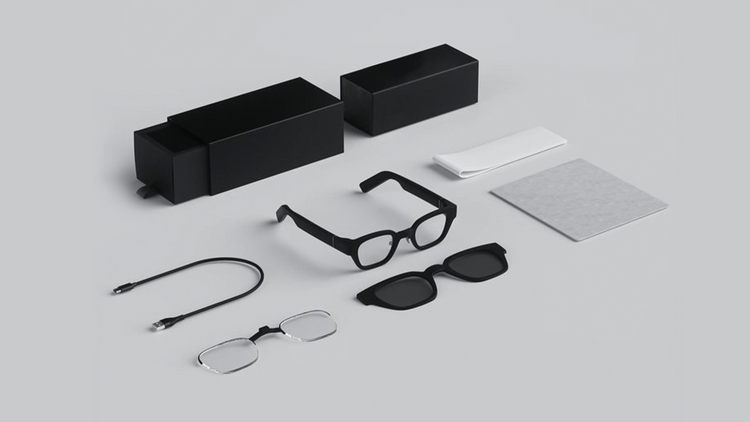
Hearview offers subtitle glasses that can display captions from your phone or computer directly in your field of vision. While not a replacement for built-in captioning, they can be a helpful addition when you want to keep your eyes on the screen share while reading captions. The glasses connect wirelessly and work with many captioning apps and platforms. They are designed for personal use and can be part of your overall accessibility toolkit. As with any assistive technology, test them with your specific support platform to ensure compatibility.
FAQ
1. Can I request captions on any video support call?
Most major platforms offer captions, but not all companies enable them by default. You can request captions before the call, and many agents will turn them on if available. If the platform doesn't support captions, ask if they can use a third-party service or provide a transcript after the call.
2. What if the captions are inaccurate?
Automated captions can have errors, especially with technical jargon. If you notice mistakes, ask the agent to repeat or clarify. You can also ask them to type important information in the chat. For ongoing issues, consider using a dedicated captioning app or service.
3. Do I need to tell the company about my hearing loss?
It's not required, but informing the support team can help them provide better accommodations. You can simply say, "I have hearing loss and would like captions enabled for this call." Most agents are happy to assist.
Conclusion
Video customer support captions for hearing loss are becoming more common, but you still need to advocate for yourself. By testing captions in advance, setting up your camera and microphone, and verifying that captions are working during the call, you can get the help you need without unnecessary stress. Remember to follow up if issues persist, and consider tools like Hearview subtitle glasses as part of your accessibility planning. With the right preparation, you can turn a frustrating support call into a clear, productive conversation.
Explore Hearview subtitle glasses to enhance your video support experience.